
Content Types
Real-world apps need a variety of content types and it is only natural that the Vyuh Framework supports such a scenario. Extensibility is one of the primary qualities of this framework and in this guide we will see how to introduce a new Custom Content Type. We will add the schema on the CMS and build its implementation on Flutter.
A quick summary of all the steps:
CMS Side
- Create a schema for the content type
- Register it with the FeatureDescriptor
- Add a few instances of the new content type for testing
Dart/Flutter Side
- Create the Dart equivalent of the content type
- Create its ContentBuilder with a default LayoutConfiguration
- Register it with the FeatureDescriptor on the Dart side
- See the cards rendered live on the screen
1. A Product Card Content Type
Cards have become one of the most prominent types of visual metaphors for real-world objects. Let us create a Product Card that stands for products you would present to your customers. These could be products from Fashion, Sports, Finance, Healthcare, or any other industry.
Defining the Schema
The first step is to define a schema that represents a product. A typical product would consist of the following properties: title, description, price, category, skuId, and an image. The following schema captures all of this in a Sanity schema:
import { defineField, defineType } from 'sanity'
import { IoShirt as Icon } from 'react-icons/io5'

export const productCard = defineType({
  name: 'misc.productCard',
  title: 'Product Card',
  type: 'object',
  icon: Icon,
  fieldsets: [
    {
      name: 'name',
      title: 'Name',
      options: { columns: 2 },
    },
    {
      name: 'details',
      title: 'Product Details',
      options: { columns: 2 },
    },
  ],
  fields: [
    defineField({
      name: 'title',
      title: 'Title',
      type: 'string',
      validation: (Rule) => Rule.required(),
      fieldset: 'name',
    }),
    defineField({
      name: 'description',
      title: 'Description',
      type: 'text',
      rows: 4,
      validation: (Rule) => Rule.required(),
      fieldset: 'name',
    }),
    defineField({
      name: 'skuId',
      title: 'SKU Id',
      type: 'string',
      validation: (Rule) => Rule.required(),
      fieldset: 'details',
    }),
    defineField({
      name: 'price',
      title: 'Price',
      type: 'number',
      validation: (Rule) => Rule.required(),
      fieldset: 'details',
    }),
    defineField({
      name: 'category',
      title: 'Category',
      type: 'string',
      validation: (Rule) => Rule.required(),
      fieldset: 'details',
    }),
    defineField({
      name: 'image',
      title: 'Image',
      type: 'image',
    }),
  ],
  preview: {
    select: {
      title: 'title',
      price: 'price',
      category: 'category',
      skuId: 'skuId',
      image: 'image',
    },
    prepare(selection) {
      const { title, image, price, category, skuId } = selection
      return {
        title: `ProductCard | ${title} (${skuId})`,
        subtitle: `${category} - $${price}`,
        media: image,
      }
    },
  },
})
Exporting it in the FeatureDescriptor
Export this schema for usage inside the CMS using the FeatureDescriptor. Notice that we export it as a custom content within the contentSchemaBuilders property and also add it to the regionItems of the RouteDescriptor:
import {
  BuiltContentSchemaBuilder,
  FeatureDescriptor,
} from '@vyuh/sanity-schema-core'
import { RouteDescriptor } from '@vyuh/sanity-schema-system'
import { productCard } from './content/product-card.ts'

export const misc = new FeatureDescriptor({
  name: 'misc',
  title: 'Miscellaneous',
  contents: [
    new RouteDescriptor({
      regionItems: [{ type: productCard.name }],
    }),
  ],
  contentSchemaBuilders: [
    new BuiltContentSchemaBuilder({
      schema: productCard,
      schemaType: productCard.name,
    }),
  ],
})
Creating a Product Card on the CMS
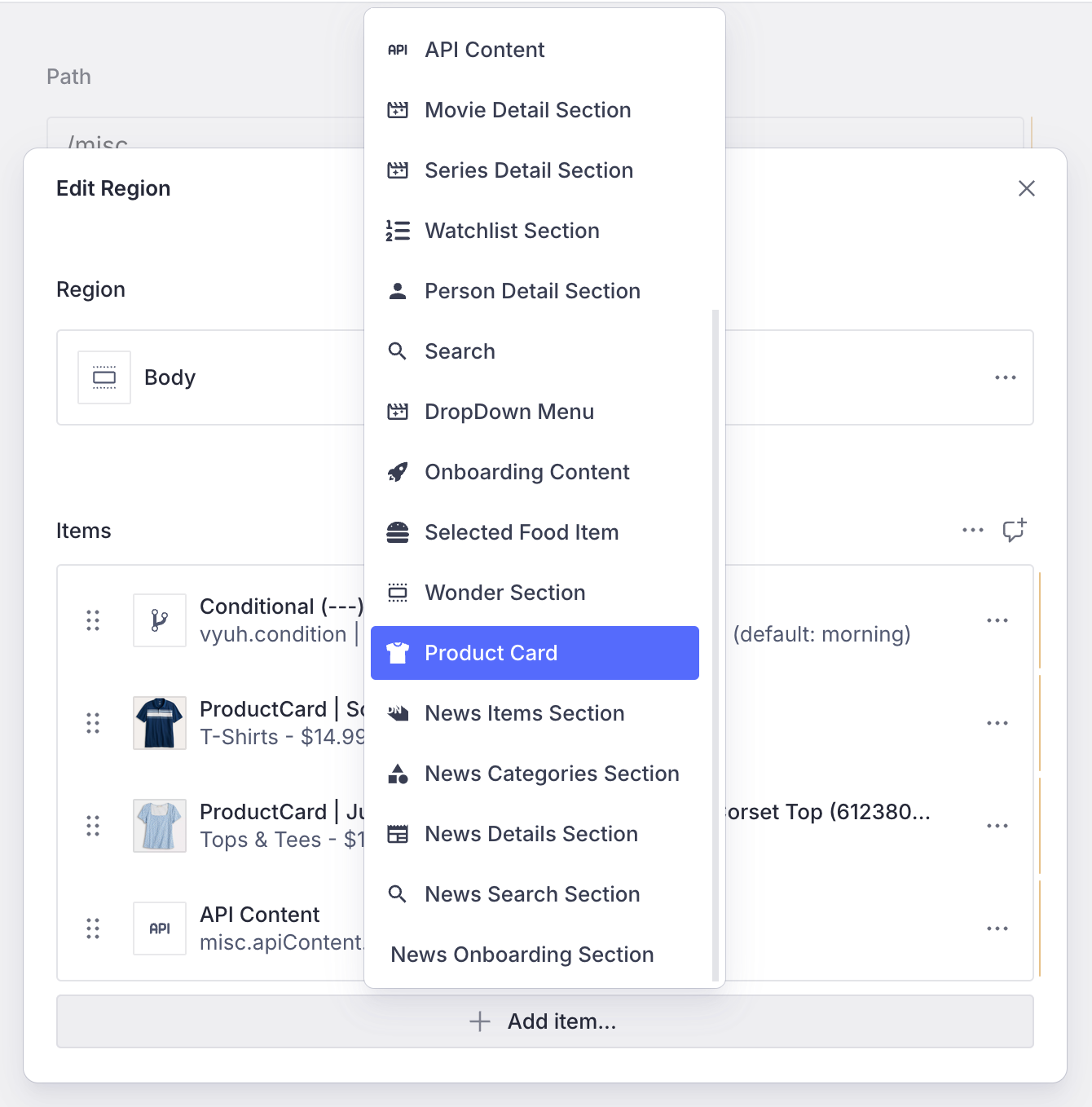
Now that we have the schema defined, you can add products to your page in the CMS. Since the Product Card has been added to the route's region items, it will appear in the list of content items for the Region.
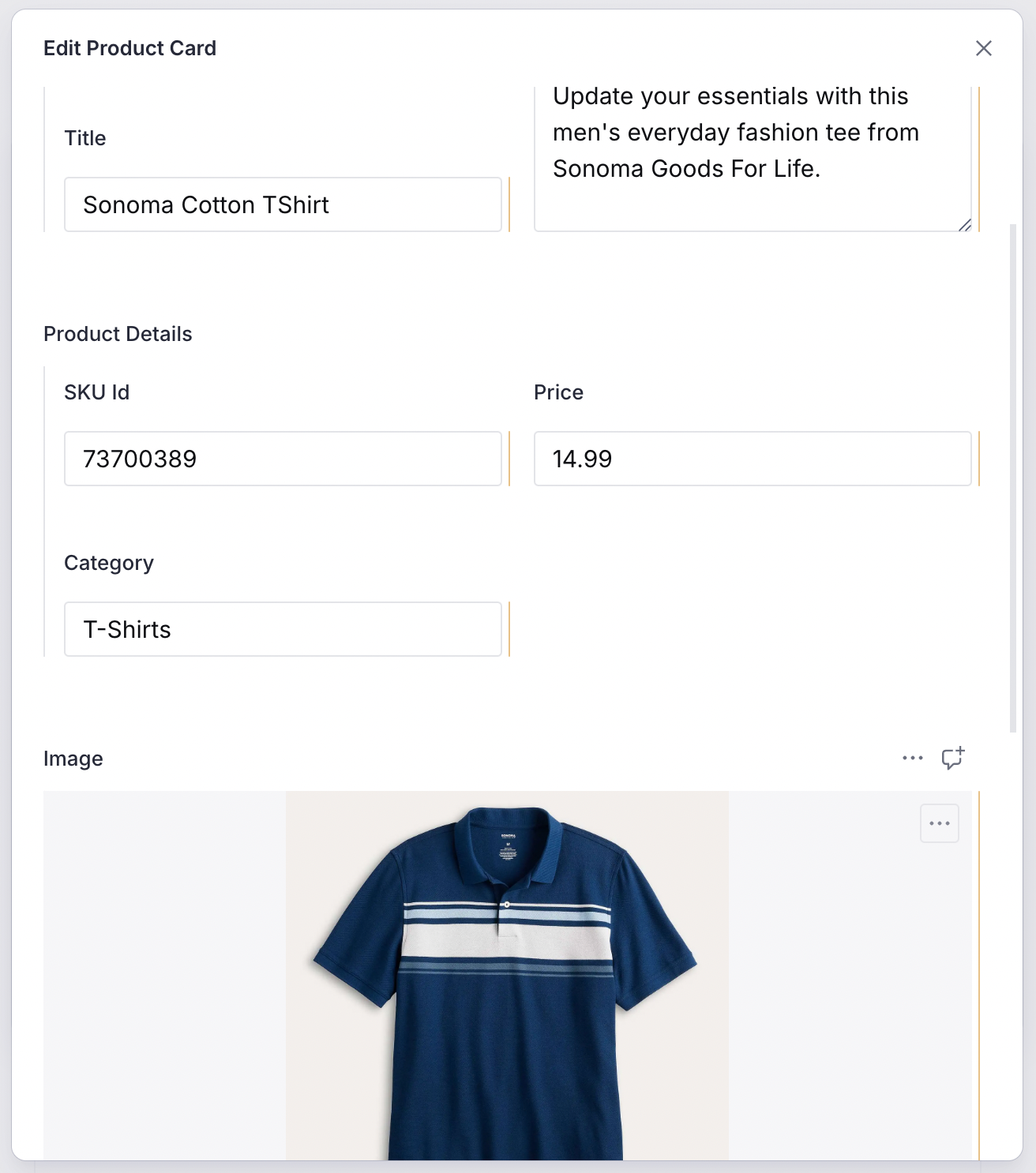
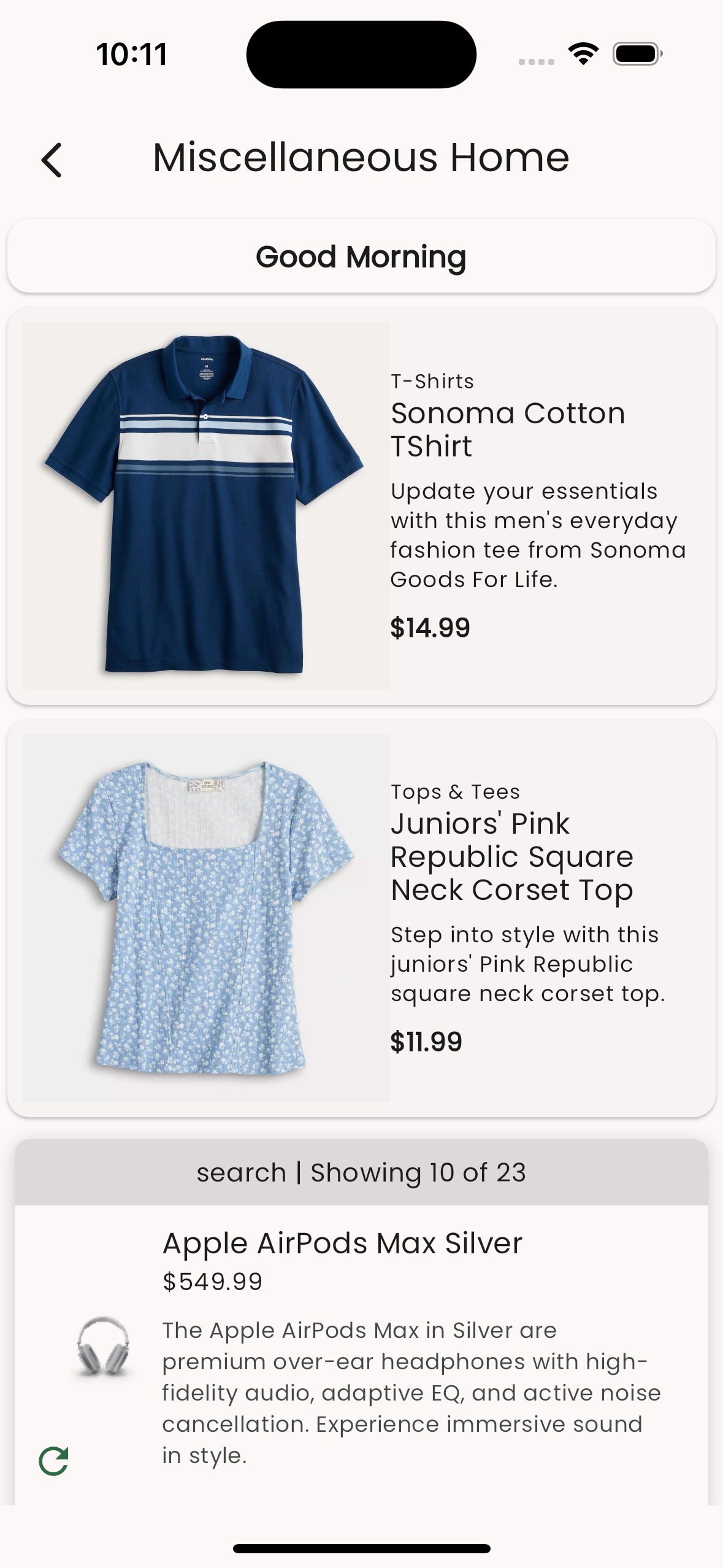
After adding some of the details of the Product, we have the card ready to be displayed on the app.
2. Rendering the Product Card
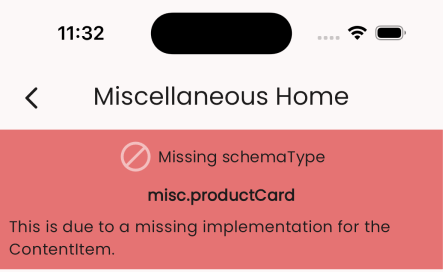
Having an item defined on the CMS is only half the story. To render it on Flutter, we need to create its Dart equivalent. If we fail to do so, we will be greeted with a message indicating the missing piece of the content definition.
Building the Dart Equivalent of the Schema
The Dart version of the Product schema is the type-safe version of the JSON we get from the CMS:
import 'package:json_annotation/json_annotation.dart';
import 'package:vyuh_core/vyuh_core.dart';
import 'package:vyuh_extension_content/vyuh_extension_content.dart';

part 'product_card.g.dart';

@JsonSerializable(createToJson: false)
final class ProductCard extends ContentItem {
  static const schemaName = 'misc.productCard';
  static final typeDescriptor = TypeDescriptor(
    schemaType: schemaName,
    title: 'Product Card',
    fromJson: ProductCard.fromJson,
  );

  static final contentBuilder = ContentBuilder<ProductCard>(
    content: ProductCard.typeDescriptor,
    defaultLayout: DefaultProductCardLayout(),
    defaultLayoutDescriptor: DefaultProductCardLayout.typeDescriptor,
  );

  final String title;
  final String description;
  final ImageReference? image;
  final double price;
  final String skuId;
  final String category;

  ProductCard({
    required this.title,
    required this.description,
    this.image,
    required this.price,
    required this.skuId,
    required this.category,
    super.layout,
  }) : super(schemaType: schemaName);

  factory ProductCard.fromJson(Map<String, dynamic> json) =>
      _$ProductCardFromJson(json);
}
Notice the static fields: schemaName, typeDescriptor, and the contentBuilder. These are by convention a way of keeping the meta details about the content item together. The typeDescriptor helps in defining the way to hydrate a Dart version of the Product from its JSON equivalent. The contentBuilder helps in creating the visual representation of the Product.
INFO
The ProductCard's ContentBuilder is simple and does not rely on ContentDescriptor at this point. More complex ContentBuilder instances will also work with their corresponding ContentDescriptor elements to collect configurations across features.
Rendering with a LayoutConfiguration
To render any ContentItem, we need a LayoutConfiguration that tells the framework how to represent it in Flutter. A ContentItem can have multiple LayoutConfiguration definitions and any feature can add more layouts for the content type.
@JsonSerializable()
final class DefaultProductCardLayout extends LayoutConfiguration<ProductCard> {
  static const schemaName = '${ProductCard.schemaName}.layout.default';
  static final typeDescriptor = TypeDescriptor(
    schemaType: schemaName,
    title: 'ProductCard',
    fromJson: DefaultProductCardLayout.fromJson,
  );

  DefaultProductCardLayout() : super(schemaType: schemaName);

  factory DefaultProductCardLayout.fromJson(Map<String, dynamic> json) =>
      _$DefaultProductCardLayoutFromJson(json);

  @override
  Widget build(BuildContext context, ProductCard content) {
    final theme = Theme.of(context);

    return Card(
      clipBehavior: Clip.antiAlias,
      child: Padding(
        padding: const EdgeInsets.all(8.0),
        child: Row(
          children: [
            if (content.image != null)
              ContentImage(
                ref: content.image!,
                width: 200,
              ),
            Expanded(
              child: Column(
                crossAxisAlignment: CrossAxisAlignment.start,
                children: [
                  Text(content.category,
                      style: theme.textTheme.labelSmall),
                  Text(content.title,
                      style: theme.textTheme.titleMedium),
                  Padding(
                    padding: const EdgeInsets.symmetric(vertical: 8.0),
                    child: Text(content.description,
                        style: theme.textTheme.bodySmall),
                  ),
                  Text('\$${content.price}',
                      style: theme.textTheme.bodyMedium
                          ?.apply(fontWeightDelta: 2)),
                ],
              ),
            ),
          ],
        ),
      ),
    );
  }
}
Multiple Layouts
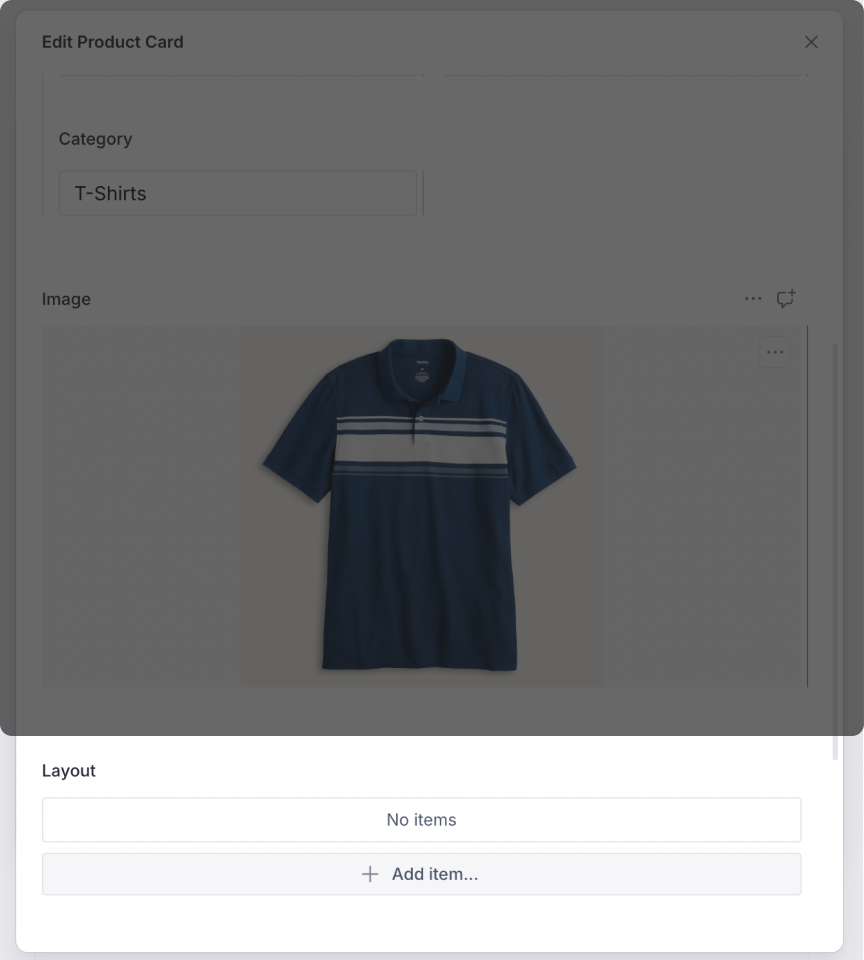
A ContentItem like ProductCard can have one of many layouts applied to it. This is configurable from the CMS, as shown with the highlighted Layout field. Each layout is a different configuration and can contain specific parameters to tweak the visual representation.
Registering the Product Content Type
Just like on the CMS side, register this content type on Flutter using the FeatureDescriptor:
final feature = FeatureDescriptor(
  name: 'misc',
  title: 'Misc',
  icon: Icons.miscellaneous_services_outlined,
  extensions: [
    ContentExtensionDescriptor(
      contentBuilders: [
        ProductCard.contentBuilder,
      ],
    ),
  ],
);
3. Seeing the Products in Action
With the schema on the CMS and its equivalent ContentBuilder created on Flutter, you can now see it rendered in your app. It uses the default layout to render the product as a simple Card widget.
Summary
In this guide we described the process of adding a new content type within an app. We started with the schema for the ProductCard content type and registered it with the FeatureDescriptor to be visible inside the CMS.
On the Dart/Flutter side we did an equivalent registration where we created the ProductCard ContentItem type that knows how to deserialize the JSON schema. Using the combination of a ContentBuilder for the Product type with a DefaultProductCardLayout we could render the ProductCard on the screen.
In this guide we created a single default layout. However, it is possible to have several different layouts for the ProductCard. We cover creating additional custom layouts in the guide on Layouts.